
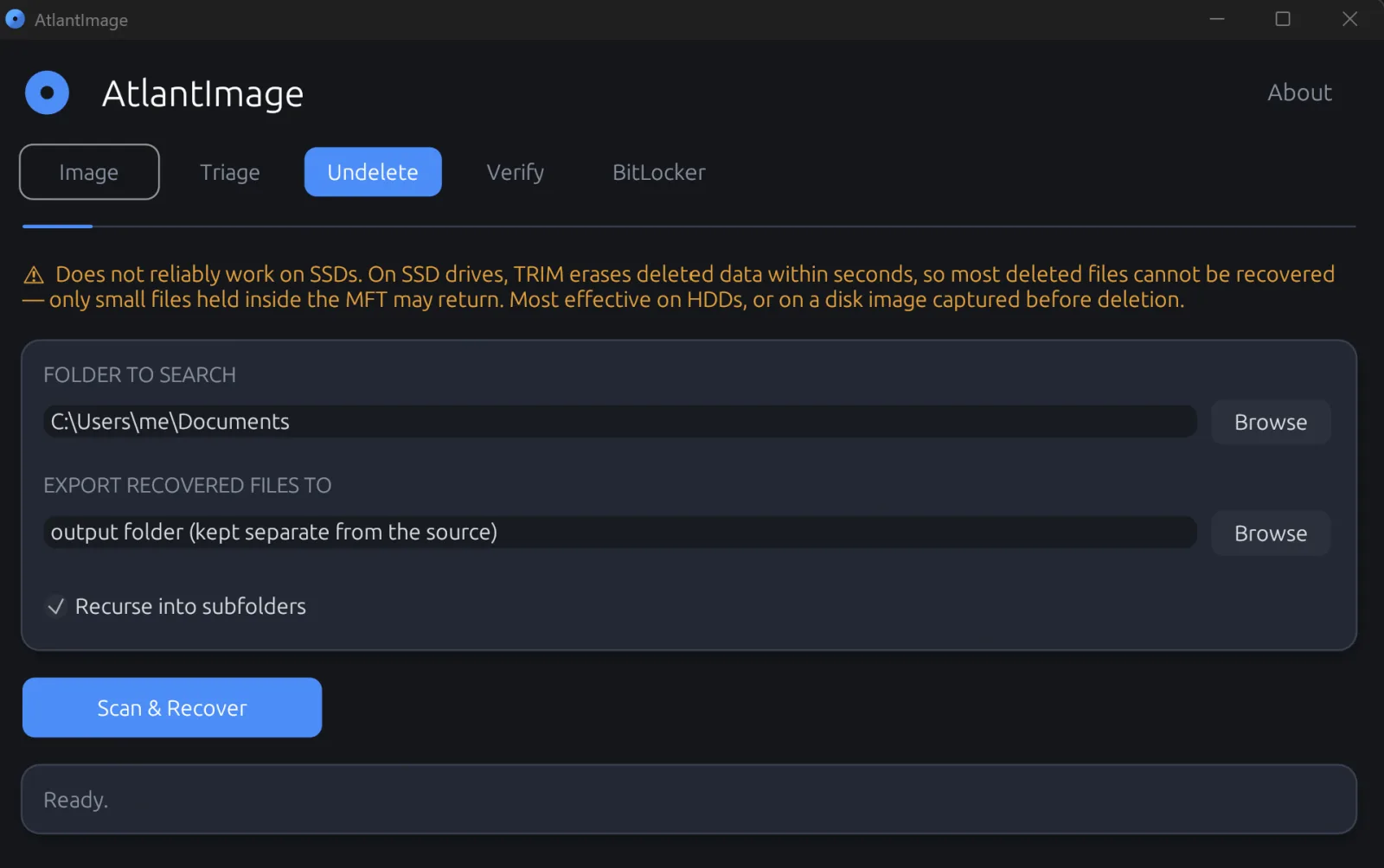
Deleting a file rarely destroys it. On NTFS, pressing Shift+Delete or emptying the Recycle Bin does two small bookkeeping things: it marks the file's record in the Master File Table (MFT) as free, and it clears the bits in the volume bitmap that reserved the file's clusters. The actual bytes of your document sit untouched on the disk until something else happens to reuse those clusters. That gap between "marked free" and "physically overwritten" is the entire basis of file recovery.
How NTFS deletion really works
Every file on an NTFS volume has an MFT record describing it: its name, its parent folder, its timestamps, and where its data lives. Small files are stored resident, entirely inside the MFT record itself. Larger files are non-resident, with the record pointing to runs of clusters elsewhere on the disk. When you delete a file, the record is flagged as no longer in use but is not immediately wiped, and the data runs are not zeroed. Until the operating system allocates that MFT slot to a new file, or writes new data into those clusters, the original is recoverable.
This is why the first rule of recovery is to stop using the drive. Every write, every browser cache update, every Windows background task is a chance to land on the clusters you want back.
Intact, partial, or gone
Not every recovery is equal, and a tool that simply lists deleted file names without telling you their condition is doing you a disservice. There are three outcomes:
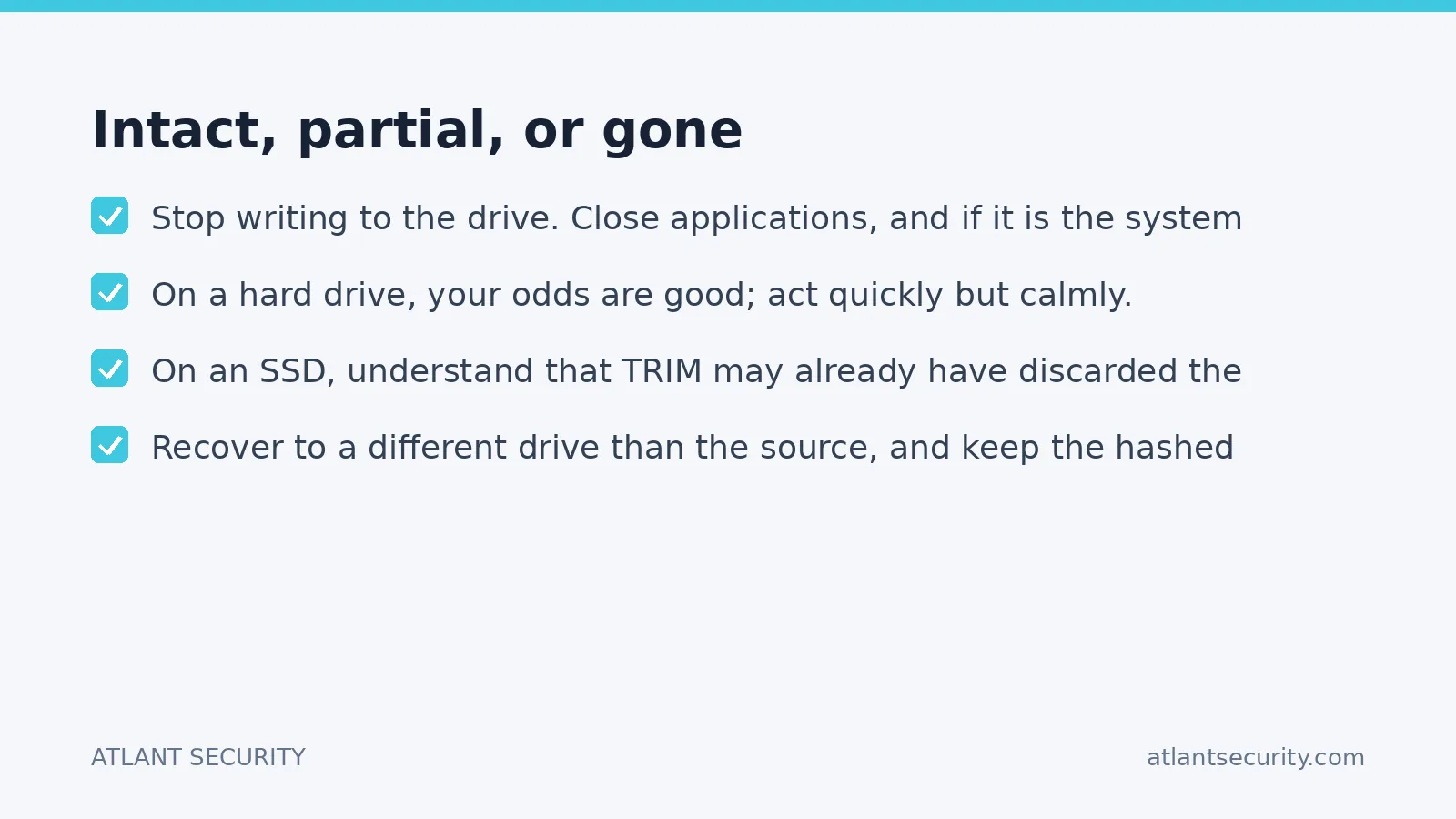
- Intact. The MFT record still points to its clusters and none of them have been reused. This is a clean, complete recovery.
- Partially overwritten. Some of the file's original clusters have been reallocated to other files. You can recover the surviving fragments, but the file is incomplete and you must know that.
- Gone. The clusters have been overwritten, or on an SSD discarded entirely. The name may still appear in the MFT, but the content is unrecoverable.
Honest integrity labeling is the difference between evidence you can rely on and a false sense of success.
The SSD TRIM trap
Everything above assumes a hard drive, where deleted data lingers until overwritten. Solid-state drives broke that assumption. To stay fast, SSDs need to know which blocks are free so they can erase them ahead of time, and the operating system tells them with the TRIM command. When you delete a file on a TRIM-enabled SSD, Windows notifies the drive that those blocks are no longer needed, and the SSD's controller erases or deallocates them, often within seconds. A subsequent read of those blocks returns zeros, by design and at the hardware level.
The practical consequence is blunt: on a modern SSD with TRIM enabled, deleted file content is frequently gone almost immediately, regardless of how fast you react or what software you use. Recovery tools cannot undo a hardware-level discard. This is not a limitation of any one product; it is physics plus firmware. The honest move is to detect it and say so, rather than present an empty or zero-filled "recovery" as a win.
Recovering a folder for free with AtlantImage
AtlantImage includes targeted NTFS undelete that recovers files from a specific folder without imaging the entire drive. It scans the MFT for deleted records belonging to your chosen folder and its subfolders, recovers both intact and partially-overwritten files, and labels each one by integrity so you are never misled about what truly came back. Crucially, it cross-checks the volume bitmap and flags content that was already overwritten or discarded by SSD TRIM, so a recovered listing reflects reality instead of wishful thinking. Recovered files are written out alongside a CSV manifest with hashes for each one.
From the command line it is a single scoped operation:
AtlantImage undelete --volume C: --path "Users\alex\Documents" --out .\recoveredFor incident response, the same tool also pulls live NTFS triage artifacts, the $MFT, $LogFile, and $UsnJrnl:$J, straight off the raw volume when full imaging is not practical, each hashed and written with a manifest.
What to do the moment a file matters
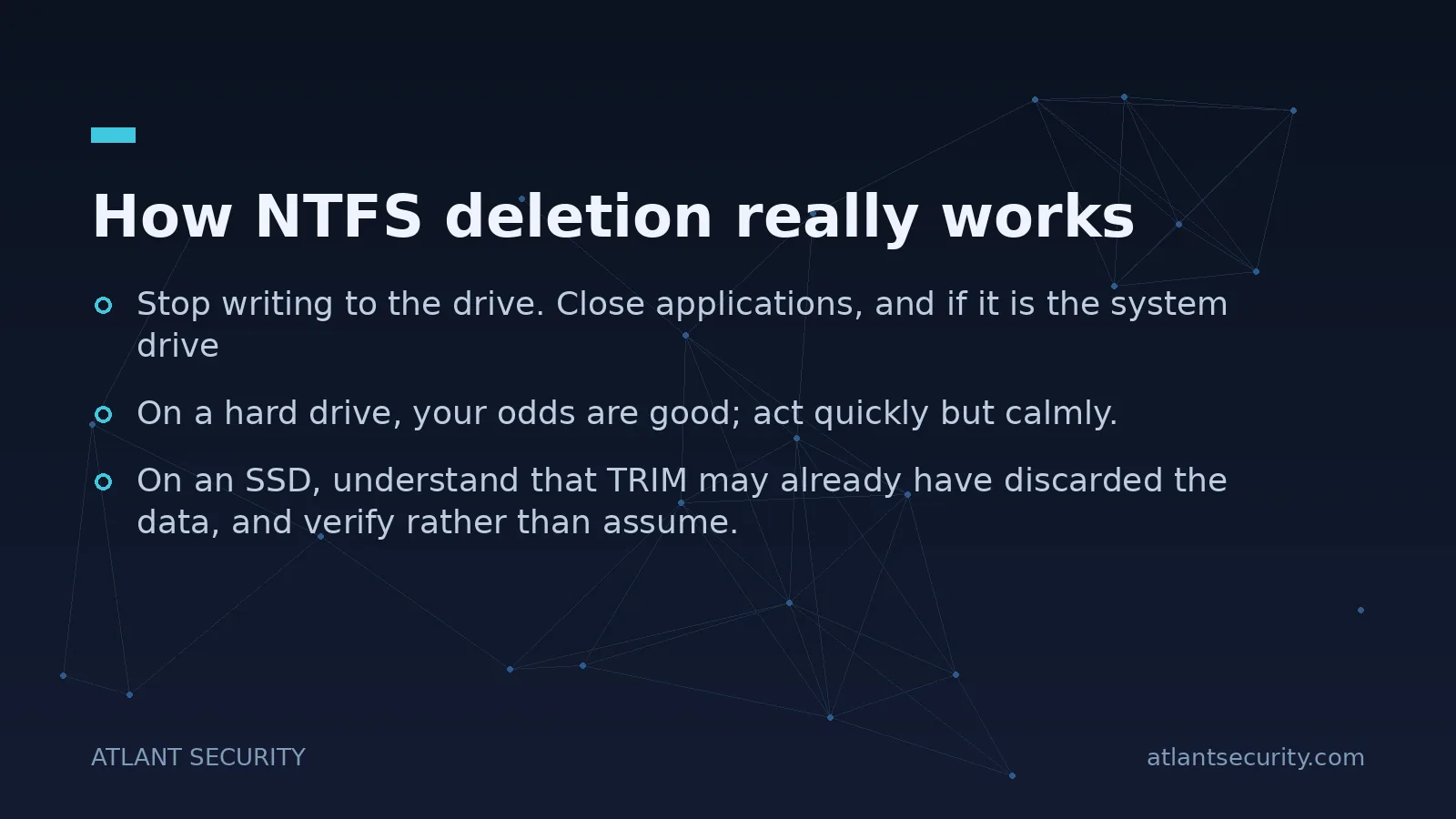
- Stop writing to the drive. Close applications, and if it is the system drive, consider imaging it from another machine.
- On a hard drive, your odds are good; act quickly but calmly.
- On an SSD, understand that TRIM may already have discarded the data, and verify rather than assume.
- Recover to a different drive than the source, and keep the hashed manifest with the recovered files.
Recovery is a race against reuse. Knowing how NTFS and your storage medium behave tells you, honestly, whether that race is winnable.
AtlantImage is free. Download AtlantImage (one portable executable, no installer, no signup). For full forensic acquisition and BitLocker decryption, the same executable handles imaging and verification. Book a discovery call if you want our team to help.
