
We have probably seen your problem before. Our smallest client had eight employees. Our largest secures the nuclear power plant of the United Arab Emirates. Whatever shape yours is, tell us about it and we will tell you how we would fix it.
It was 31st of December 2025, and the call I got from my friend was probably celebratory... but it wasn't.
He called to share the bad news of his entire company being shut down by hackers encrypting their backups and virtual machines. And it all happened on their VMWare environment, their Veeam backups got wiped... it was a disaster. And the worst part is, that once it happens, there is very little a cybersecurity company can do besides investigation and helping to rebuild the entire infrastructure in a secure way, from scratch.
VMware ransomware defense: A complete technical implementation guide
Modern ransomware operations now specifically target VMware infrastructure, with 96% of attacks targeting backup systems and 76% successfully compromising them. ESXi-specific ransomware families have proliferated since 2021, exploiting well-documented vulnerabilities and systematically destroying recovery options before encrypting virtual machine disk files. This guide provides actionable technical steps to protect VMware environments and implement immutable backup infrastructure that can survive even sophisticated attacks where administrative credentials are compromised.
The defense strategy requires understanding the complete attack chain-from initial access through domain compromise to ESXi encryption-then implementing controls at each phase. Equally critical is deploying backup infrastructure that attackers cannot delete even with administrative access, combined with isolated recovery environments for safe restoration.
The ransomware attack chain against VMware
Initial access exploits perimeter weaknesses and stolen credentials
Ransomware operators gain initial network access through multiple vectors, typically targeting the path of least resistance. Phishing campaigns remain the most common entry point, with attackers sending credential-harvesting emails to IT personnel or deploying malicious Office documents containing Cobalt Strike or Brute Ratel beacons. (source: Sygnia)
Exploitation of perimeter devices has become increasingly common, particularly targeting VPN appliances and firewalls with known vulnerabilities. Attackers use Shodan and Censys to identify exposed VMware infrastructure, then exploit unpatched vCenter or ESXi management interfaces. RDP compromise through brute-force attacks or credential stuffing provides another reliable entry vector, with attackers using tools like hVNC for hidden remote access.
Supply chain attacks through trojanized software installers-including fake versions of legitimate tools like WinSCP and PuTTY distributed via typosquatted domains-deliver initial access payloads while appearing benign to users and security tools. (source: The Hacker News)
Privilege escalation techniques target Active Directory
Once inside the network, attackers escalate privileges to domain administrator status using well-established techniques. Mimikatz remains the primary tool for credential extraction:
sekurlsa::logonpasswords
sekurlsa::wdigest
lsadump::sam
lsadump::dcsync /domain:target.local /user:krbtgt
The DCSync attack allows domain credential extraction by simulating a domain controller replication request, enabling extraction of all password hashes including the krbtgt account. Kerberoasting and AS-REP roasting target service accounts and accounts without Kerberos pre-authentication, extracting tickets for offline password cracking using tools like Rubeus and Impacket.
Active Directory misconfigurations provide additional escalation paths. CVE-2024-37085 represents a critical ESXi-specific vulnerability: any user added to an AD group named "ESX Admins" automatically receives full administrative access to ESXi hosts, even if the group was recreated after previous deletion. (source: Microsoft) Attack execution requires only:
net group "ESX Admins" /domain /add
net group "ESX Admins" attacker_user /domain /add
Attackers use BloodHound to map attack paths through AD, identifying the shortest route to domain admin and vCenter administrator privileges. Cobalt Strike provides command-and-control infrastructure and facilitates lateral movement via PsExec, WMI, and RDP.
Critical VMware vulnerabilities enable direct infrastructure compromise
Several critical CVEs have been actively exploited in ransomware campaigns targeting VMware infrastructure:
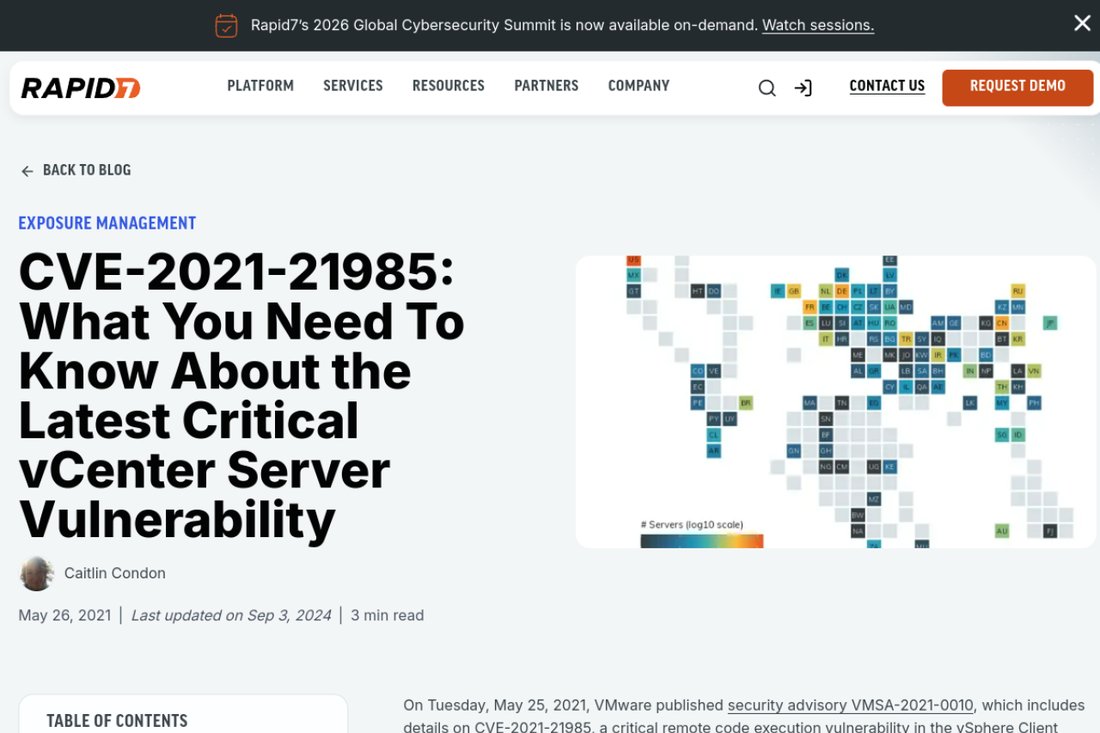
CVE-2021-21985 (CVSS 9.8) affects the Virtual SAN Health Check plug-in in vCenter Server 6.5, 6.7, and 7.0. This unauthenticated remote code execution vulnerability via port 443 was exploited in ransomware campaigns within days of public disclosure, with proof-of-concept code widely available. (source: Rapid7)
CVE-2021-22005 (CVSS 9.8) enables arbitrary file upload in the vCenter Analytics service regardless of configuration settings. (source: Rapid7) Attackers exploit directory traversal to write cron jobs establishing reverse shells:
curl -kv "https://<vCenter-IP>/analytics/telemetry/ph/api/hyper/send?_c&_i=test" \
 -d "payload" -H "Content-Type: application/json"
CVE-2021-21974 (CVSS 8.8) is the OpenSLP heap overflow vulnerability exploited by the ESXiArgs campaign in February 2023, affecting ESXi 7.0, 6.7, and 6.5 prior to patches. (source: Bleeping Computer) This vulnerability enabled unauthenticated RCE via port 427, compromising over 3,800 servers globally. (source: CISA)
CVE-2020-3992 and CVE-2019-5544 are additional OpenSLP vulnerabilities in CISA's Known Exploited Vulnerabilities catalog, used by groups including DarkSide (Colonial Pipeline attack).
ESXi compromise follows a predictable pattern
After gaining vCenter access-typically through credential reuse from domain admin compromise, vpxuser credential extraction, or SSO exploitation-attackers enable SSH on target ESXi hosts and execute a systematic sequence:
Enable SSH access:
vim-cmd hostsvc/enable_ssh
vim-cmd hostsvc/autostartmanager/enable_autostart false
Enumerate virtual machines:
vm-support --listvms
esxcli vm process list
vim-cmd vmsvc/getallvms
esxcli storage filesystem list
Shutdown running VMs before encryption (multiple methods observed):
# Method 1 - esxcli force kill
esxcli vm process kill --type=force --world-id=<ID>
# Method 2 - Combined command (AvosLocker, RedAlert)
esxcli --formatter=csv --format-param=fields=="WorldID,DisplayName" vm process list | \
 tail -n +2 | awk -F $',' '{system("esxcli vm process kill --type=force --world-id=" $1)}'
# Method 3 - vim-cmd (Hive)
vim-cmd vmsvc/power.off <vmid>
# Method 4 - vmdumper (LockBit)
/sbin/vmdumper %d suspend_v
Delete snapshots to eliminate recovery options:
for i in `vim-cmd vmsvc/getallvms| awk '{print$1}'`; do
 vim-cmd vmsvc/snapshot.removeall $i &
done
Ransomware then encrypts files in /vmfs/volumes/, targeting.vmdk (virtual disks),.vmx (configuration),.vmxf,.vmsd,.vmsn (snapshot files),.vswp,.vmss,.nvram,.vmem, and.log files. (source: The Hacker News)
ESXi ransomware families share common characteristics
BlackCat/ALPHV was the first major ransomware written in Rust, using AES or ChaCha20 encryption with RSA key protection. It operates on Windows, Linux, and ESXi with multi-threaded encryption and configurable VM exclusion lists. (source: VMware Blogs) Execution requires an access token parameter. (source: CloudSEK)
LockBit ESXi uses AES with ECC (Curve25519), implements ptrace-based debugger detection, XOR string obfuscation, and retries VM suspension up to 9 times per world ID. It writes activity logs to /tmp/locklog.
Royal ransomware (linked to former Conti members, succeeded by BlackSuit) uses AES-256 with RSA, offering configurable partial encryption via the -ep parameter to increase encryption speed at the cost of thorough encryption.
Black Basta uses multi-threaded ChaCha20 encryption, targets only /vmfs/volumes/ (exits if not found), and notably lacks VM shutdown capability-encrypting running VMs directly. (source: VMware Blogs)
ESXiArgs exploited CVE-2021-21974 using RSA with Sosemanuk stream cipher derived from leaked Babuk source code. (source: Bleeping Computer) CISA released a recovery script for early variants, though later versions encrypted additional data making recovery impossible. (source: CISA)
Backup systems are specifically targeted for destruction
Before deploying ransomware, sophisticated attackers systematically destroy backup infrastructure. They identify backup systems through AD group enumeration (searching for "Veeam Admins," "Backup Operators"), network scanning for backup ports, and vSphere API queries.
Veeam-specific attacks target CIFS shares containing repositories, extract stored credentials from the Veeam database, and delete backup files. The vpxuser credential extraction attack leverages vCenter's stored encrypted passwords for ESXi management-the decryption key is stored on vCenter itself, providing root access to all managed hosts. (source: The Hacker News)
Standard backup destruction commands on Windows systems include:
vssadmin delete shadows /all /quiet
wmic shadowcopy delete
bcdedit /set {default} recoveryenabled No
wbadmin delete catalog -quiet
Data exfiltration occurs before encryption using RClone to cloud storage, WinSCP, or custom tools like ExMatter, with data sent to Mega.io, Dropbox, or attacker-controlled servers for double-extortion leverage. (source: CISA ESXiArgs advisory)
VMware infrastructure hardening
vCenter Server hardening requires defense-in-depth
SSO configuration should use Active Directory over LDAPS rather than Integrated Windows Authentication (deprecated in vSphere 8.0+):
/opt/vmware/bin/sso-config.sh \
 -add_identity_source -name "domain.org" \
 -type adldap \
 -baseUserDN "DC=domain,DC=org" \
 -baseGroupDN "DC=domain,DC=org" \
 -domain "domain.org" \
 -alias "DOMAIN" \
 -username "QueryUser@domain.org" \
 -password 'SecurePassword' \
 -primaryURL "ldaps://dc1.domain.org:636" \
 -sslCert /tmp/dc1.cer,/tmp/dc2.cer
Multi-factor authentication is critical-direct AD-to-vCenter integration without MFA is a primary vulnerability exploited by ransomware groups. Configure identity federation with ADFS, Okta, or Azure AD supporting SAML 2.0, mandating phishing-resistant MFA (FIDO2/WebAuthn) at the identity provider level.
Role-based access control should avoid the Administrator role except for break-glass accounts. Create custom roles with minimum required privileges, implement object-level permissions, and create separate admin accounts for vSphere management that are not domain admin accounts.
Network isolation is essential: vCenter must only be accessible from dedicated management VLANs with no direct internet connectivity. Use https://ports.vmware.com for required ports reference-primarily TCP 443 (vSphere Client), TCP 5480 (VAMI), and TCP 22 (SSH, disabled by default).
Configuration backup should run daily with encryption enabled:
# VAMI: https://vcenter:5480 > Backup > Configure backup schedule
# CLI backup
/opt/vmware/bin/python /usr/lib/vmware-applmgmt/vmware_applmgmt_backup_helper.py \
 --location protocol://server/path \
 --username backup_user \
 --password backup_pass
ESXi host hardening prevents direct compromise
Lockdown Mode is critical for limiting attack surface. Normal mode keeps DCUI accessible for emergency access while requiring all other management through vCenter. Strict mode disables all direct access.
# Enable Normal Lockdown Mode via PowerCLI
Get-VMHost | ForEach-Object { ($_ | Get-View).EnterLockdownMode() }
# Set specific mode (vSphere 6.0+)
$view = Get-VMHost "esxi01.domain.com" | Get-View
$view.EnterLockdownMode("lockdownNormal")
SSH must be disabled when not actively needed:
# Stop SSH and set to manual start
Get-VMHost | Get-VMHostService | Where-Object {$_.key -eq "TSM-SSH"} | Stop-VMHostService -Confirm:$false
Get-VMHost | Get-VMHostService | Where-Object {$_.key -eq "TSM-SSH"} | Set-VMHostService -Policy Off

# Configure automatic timeout when enabled
Get-VMHost | Get-AdvancedSetting -Name UserVars.ESXiShellInteractiveTimeOut | Set-AdvancedSetting -Value 300
Get-VMHost | Get-AdvancedSetting -Name UserVars.ESXiShellTimeOut | Set-AdvancedSetting -Value 600
Disable SLP service (exploited by ESXiArgs):
esxcli network firewall ruleset set --ruleset-id=CIMSLP --enabled=false
/etc/init.d/slpd stop
esxcli system module set -m slpd -e false
chkconfig slpd off
esxcli network firewall refresh
Enable execInstalledOnly to prevent unsigned binary execution-this is critical for ransomware prevention:
esxcli system settings kernel set -s execInstalledOnly -v TRUE
# Reboot required
# Enforce with TPM (vSphere 7.0 U2+)
esxcli system settings encryption set --require-exec-installed-only=TRUE
esxcli system settings encryption set --require-secure-boot=TRUE
/sbin/auto-backup.sh
Secure Boot and TPM should be enabled via BIOS/UEFI settings, then verified:
/usr/lib/vmware/secureboot/bin/secureBoot.py -s
/usr/lib/vmware/secureboot/bin/secureBoot.py -c
Network segmentation isolates attack propagation
Implement dedicated VLANs for each traffic type:
| Network | Purpose | Security Requirements |
|---|---|---|
| Management (VLAN 10) | ESXi mgmt, vCenter | PAW access only, no internet |
| vMotion (VLAN 20) | Live migration | Layer 2 only, no routing, enable encryption |
| vSAN (VLAN 30) | Storage replication | Isolated, enable data-in-transit encryption |
| iSCSI/NFS (VLAN 40) | Storage access | CHAP/Kerberos authentication |
| VM Production (100+) | Guest traffic | Microsegmentation via NSX |
Enable vMotion encryption (vSphere 6.5+):
Get-VMHost | Get-AdvancedSetting -Name Migrate.Enabled | Set-AdvancedSetting -Value "required"Active Directory security prevents credential-based attacks
Implement a tiered administration model:
- Tier 0 (Control Plane): Domain Controllers, PKI, AD FS, vCenter, ESXi hosts, backup infrastructure
- Tier 1 (Data Plane): Member servers, databases, applications
- Tier 2 (User Access): Workstations, end-user devices
Critical rules: Tier 0 credentials must never be exposed on lower-tier systems. vCenter and ESXi administrators should use dedicated Tier 0 accounts that are NOT members of Domain Admins.
Deploy Privileged Access Workstations (PAWs)-dedicated physical hardware (not VMs) with hardened Windows, Device Guard, Credential Guard, no internet access, and firewall rules limiting connectivity to management interfaces only.
Security monitoring enables early detection
Configure syslog forwarding for all ESXi hosts:
esxcli system syslog config set --loghost="tcp://siem.domain.com:514"
esxcli system syslog reload

# Enable audit logging
vim-cmd hostsvc/advopt/update Syslog.global.auditRecord.storageEnable bool true
vim-cmd hostsvc/advopt/update Syslog.global.auditRecord.remoteEnable bool true
Critical security events requiring immediate alerts:
- SSH enabled on ESXi hosts (
HostServiceStartedEventwhere Service = "SSH") - Mass VM power-off events (>5
VmPoweredOffEventwithin 5 minutes) - Root password changes
- Unauthorized datastore access
openssl enccommands indicating encryption preparation- Permission additions or role changes
Immutable backup implementation
Veeam Backup & Replication hardened repository
Linux repository requirements and setup
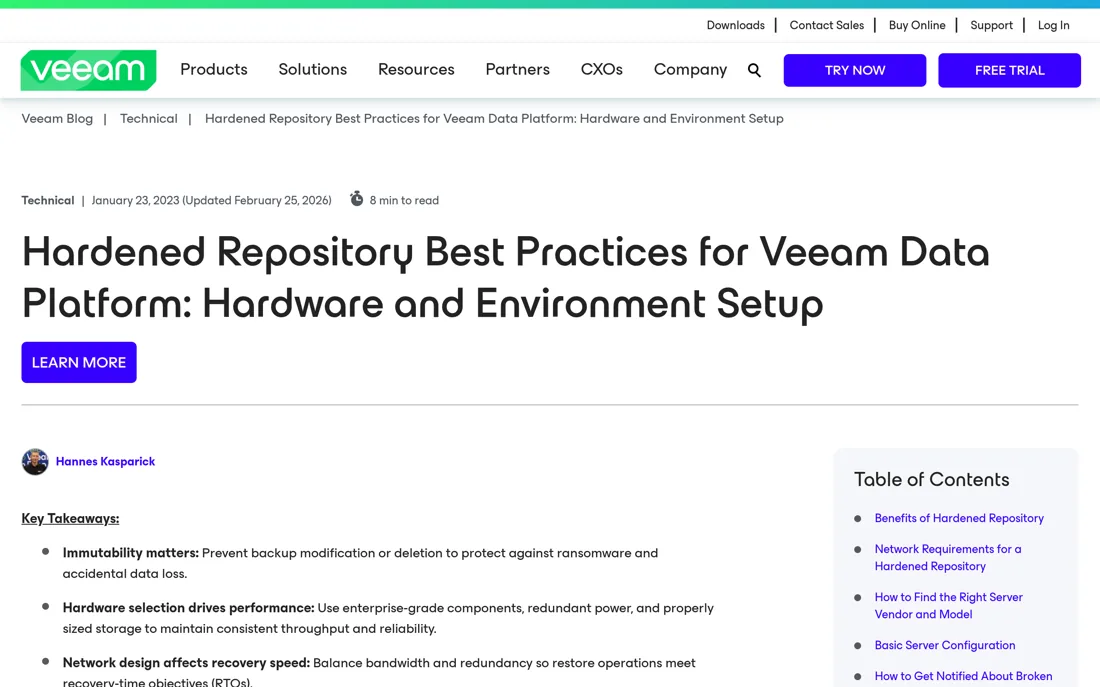
Deploy Ubuntu 20.04 LTS (kernel 5.4 provides best XFS Reflink support) (source: StarWind Software) on physical servers with internal disks-this eliminates storage-side attack vectors. (source: Veeam) Minimum specifications: 2 CPUs with 16-24 cores each, 128GB RAM, (source: Veeam) dedicated data disks separate from OS.
Post-installation hardening:
# Update packages
sudo apt update && sudo apt upgrade -y

# Remove SSH server after initial setup (critical)
sudo apt remove openssh-server -y

# Configure firewall for Veeam only
sudo ufw default deny incoming
sudo ufw default allow outgoing
sudo ufw allow 6162/tcp # Veeam Data Mover
sudo ufw allow 2500:3300/tcp # Veeam dynamic ports
sudo ufw enable
# Disable root login
sudo passwd -l root
Create service account and repository directory:
sudo adduser veeamuser
sudo mkdir -p /mnt/veeam
sudo chown -R veeamuser:veeamuser /mnt/veeam/
sudo chmod u+rwx,go-rwx /mnt/veeam
XFS file system configuration for immutability
# Install XFS utilities
sudo apt-get install xfsprogs

# Create partition
sudo fdisk /dev/sdb
# n (new), p (primary), accept defaults, w (write)
# Format with XFS and Reflink (required for Fast Clone)
sudo mkfs.xfs -b size=4096 -m reflink=1,crc=1 /dev/sdb1

# Add to fstab with secure mount options
echo '/dev/sdb1 /mnt/veeam xfs defaults,nodev,nosuid 0 0' | sudo tee -a /etc/fstab
sudo mount -a
Veeam's immutability uses Linux extended attributes (chattr +i). The veeamimmureposvc service runs with root privileges to set immutable flags on backup files, while veeamtransport runs as non-root for data transfer.
Adding hardened repository to Veeam console
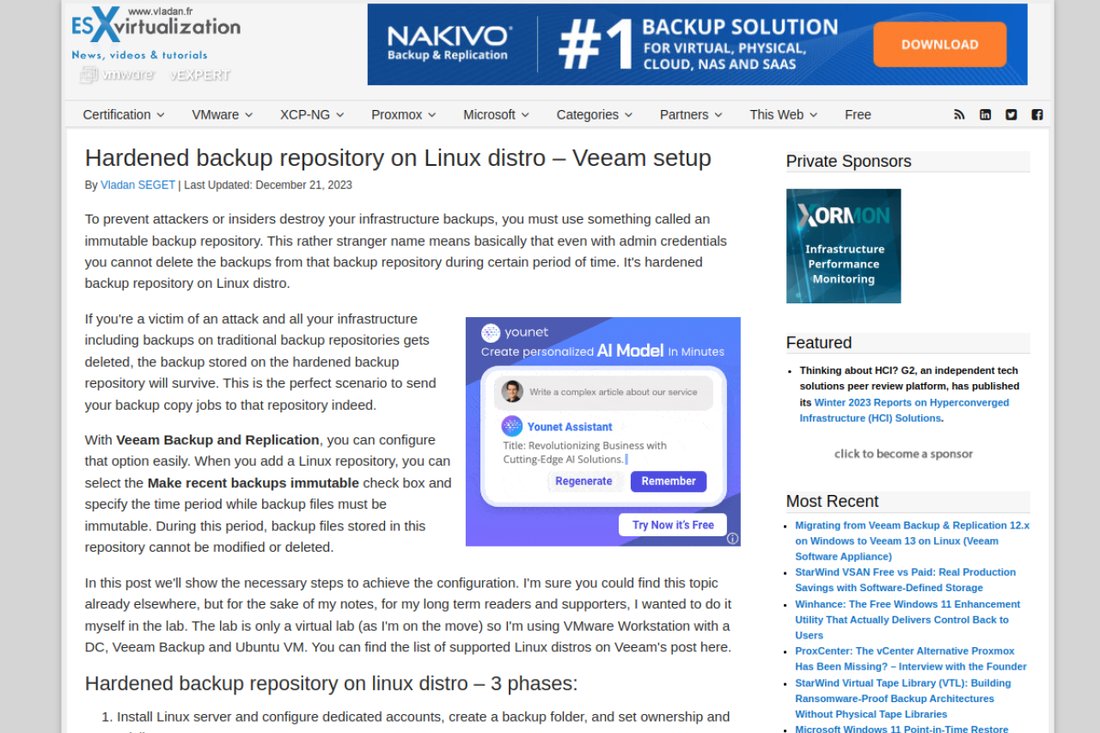
- Navigate to Backup Infrastructure Add Repository Direct Attached Storage Linux
- Click "Add New" to add Linux server
- Critical: Select "Single-use credentials for hardened repository" (source: ESX Virtualization)
- Enter veeamuser credentials (used once, then discarded)
- Set repository path to
/mnt/veeam - Check "Make recent backups immutable for [X] days" (minimum 7, recommended 14-30)
After deployment, immediately remove sudo access:
sudo deluser veeamuser sudoBackup job configuration requirements
Only Forward Incremental backup modes work with immutability:
- Forward Incremental with periodic Synthetic Full
- Forward Incremental with periodic Active Full
- Reverse Incremental (not supported)
- Forever Forward Incremental without periodic fulls
Backup copy jobs must use GFS retention policy for immutability. Each GFS point (weekly, monthly, yearly) maintains independent immutability tracking.
Separating Veeam from Active Directory
Workgroup deployment provides maximum security-no domain dependency means Veeam continues operating even if domain controllers are compromised. Create local administrator accounts with non-obvious names (avoid "Administrator," "VeeamAdmin"). Alternatively, deploy Veeam in a separate management AD forest with dedicated MFA requirements.
Protecting Veeam configuration database
Enable encrypted configuration backup via Main Menu Configuration Backup:
- Select different repository than production backups
- Enable encryption (mandatory-without encryption, credentials and encryption keys are not stored in backup)
- Store encryption password securely offline
Enable four-eyes authorization (requires Enterprise Plus license):
- Main Menu Users and Roles Authorization
- Select "Require additional approval for sensitive operations"
- Protects against: backup file deletion, repository removal, user modifications, MFA changes
Object storage with S3 Object Lock
For cloud capacity tier with immutability:
AWS S3 bucket configuration:
1. Create bucket with Object Lock enabled during creation
2. Enable Versioning (required)
3. Do NOT set default retention mode (Veeam manages this)
4. Leave retention configuration as "None"
Required IAM permissions:
{
 "Effect": "Allow",
 "Action": [
 "s3:GetBucketVersioning",
 "s3:GetBucketObjectLockConfiguration",
 "s3:PutObjectRetention",
 "s3:GetObjectRetention",
 "s3:PutObject", "s3:GetObject", "s3:DeleteObject",
 "s3:ListBucket"
 ],
 "Resource": ["arn:aws:s3:::bucket-name", "arn:aws:s3:::bucket-name/*"]
}
Commvault immutable storage configuration
WORM storage library setup
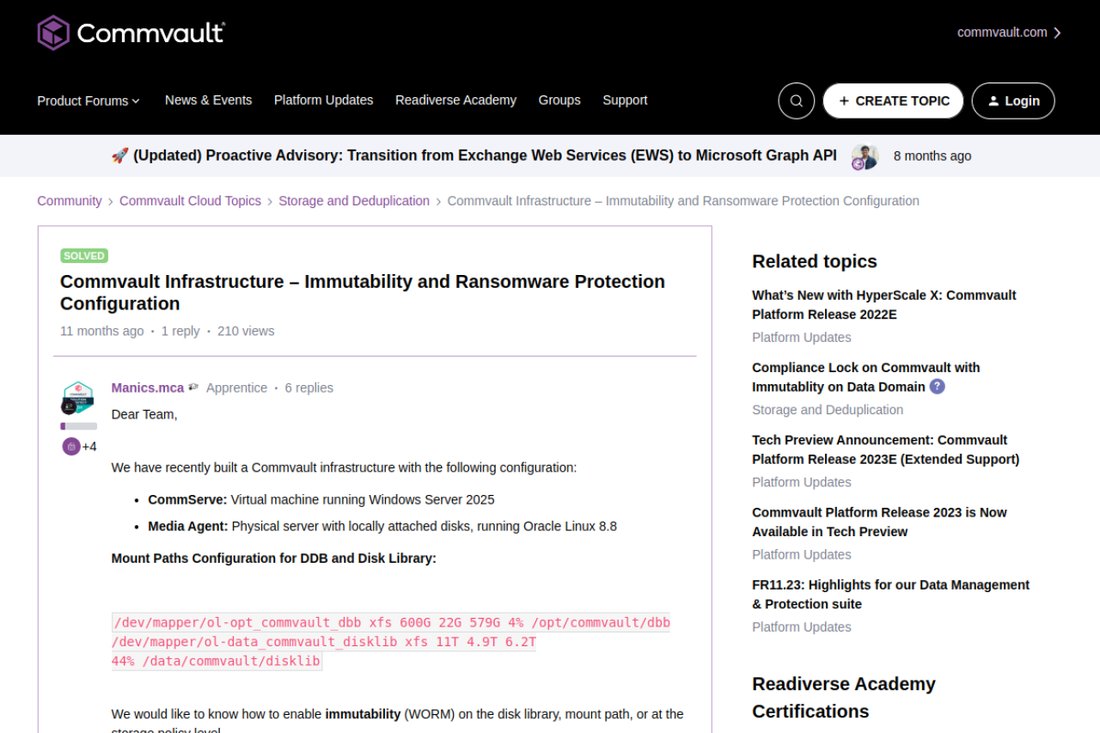
Enable WORM via Command Center:
- Navigate to Storage Disk
- Select disk library Configuration tab
- Toggle WORM storage lock to enable
- Set retention period (source: Commvault Community)
- Click OK (confirm prompts-WORM cannot be removed once enabled)
Two protection types exist:
- WORM Storage Lock: Physical hardware-level protection using cloud object-level locking
- Compliance Lock: Software-level UI protection against compromised credentials
Cloud storage with immutability
For AWS S3 Object Lock integration:
- Create Object Lock-enabled bucket in AWS
- In Command Center: Storage Cloud Add
- Enable WORM storage lock in Configuration tab
- Run "Enable WORM Storage" workflow from Commvault Store
Azure Blob configuration requires retention lock duration set to 2× the policy retention (e.g., 60-day policy = 120-day Azure retention lock).
Air-gapped copy with network topology
Configure one-way network topology where the air-gapped MediaAgent polls the CommServe at intervals, with storage isolated without inbound connections. Data is "pulled" into isolated storage rather than pushed. (source: Commvault Community)
Commvault Cloud Air Gap Protect provides fully managed cloud storage with multi-layered zero-trust access controls- (source: Commvault)no time-based retention-lock required due to architecture-based protection.
Ransomware detection features
Honeypot detection (enabled by default) places monitoring files that trigger alerts if encrypted:
Check interval: Every 4 hours (configurable)
nTimer_CheckForRansomware = [interval_in_minutes]
File Activity Anomaly Detection establishes baselines during the first 7 days, then alerts on abnormal file activities checked every 5 minutes. (source: Commvault Community)
Veritas NetBackup immutable configuration
MSDP WORM storage server
Configure WORM on MSDP using spadb command:
/usr/openv/pdde/pdspa/bin/spadb --setwormlsu \
 --mode [ENTERPRISE|COMPLIANCE] \
 --min [duration] \
 --max [duration]
Compliance Mode: No user can overwrite/delete data; retention cannot be shortened Enterprise Mode: MSDP security administrator can disable retention lock (useful for testing)
Cloud integration with Object Lock
For AWS S3 Object Lock (NetBackup 9.1+):
export MSDPC_ACCESS_KEY=your_access_key
export MSDPC_SECRET_KEY=your_secret_key
export MSDPC_REGION=us-east-1
export MSDPC_PROVIDER=amazon

# Create immutable volume
/usr/openv/pdde/pdcr/bin/msdpcldutil create \
 -b bucketname \
 -v volumename \
 --mode COMPLIANCE \
 --min 1D \
 --max 30D \
 --live 2026-12-31
Isolated Recovery Environment (IRE)
NetBackup IRE uses a "Pull" replication model (10.1+) where the target environment requests data from source, with network access restricted except during replication windows:
# Configure on WORM storage server shell
setting ire-network-control set-schedule \
 start_time=<time> \
 duration=<duration>

setting ire-network-control allow-subnets \
 subnets=<CIDR_subnets>
Cohesity DataProtect configuration
DataLock WORM protection
DataLock applies time-bound WORM protection to backup snapshots, preventing deletion or modification until retention expires-even by administrators.
Configuration requires creating a Data Security Officer (DSO) user:
- Access Management Users Create user with "Data Security" role
- Data Protection Policies Create Policy
- Enable DataLock toggle
- Set DataLock retention period (must be ≤ backup retention)
FortKnox SaaS cyber vault
FortKnox provides cloud-based data isolation:
- Hosted on AWS, Azure, GCP with Cohesity-managed encryption keys
- Virtual air gap through configurable transfer windows
- AWS Object Lock (WORM) prevents policy changes
- Quorum rule requires 2+ employees to approve critical actions
Recovery from FortKnox supports granular file/object recovery or full volume restore to original location, alternate cluster, or public cloud.
Anomaly detection via Helios
Machine learning monitors:
- Content size changes
- File change tracking
- Aggregated historical patterns
- Entropy detection (encryption indicators)
Alert integration available with Palo Alto XSOAR, Cisco SecureX, and SIEM platforms via syslog.
Rubrik immutable architecture
Native immutability design
Rubrik's architecture is purpose-built with immutability as foundational:
- Proprietary append-only file system (Atlas): Data can only be added, never deleted/modified
- No mountable snapshots: Backup data cannot be mounted directly
- No external protocols: Does not use NFS, SMB, or other exploitable protocols
- API-first design: All operations require authenticated API calls
CloudOut with S3 Object Lock
Configure AWS S3 archival with immutability:
- Create S3 bucket with Object Lock enabled at creation
- Enable S3 Versioning (required)
- In RSC: Create archival location specifying bucket
- Enable Password Encryption for metadata protection
- Set Immutability Lock Period matching SLA retention
Object-level immutability (CDM 9.3.1+) provides per-object retention matching SLA, which is more cost-effective than bucket-level.
Retention Lock settings
Governance Mode: Admins with special permissions can modify in exceptional cases; can be upgraded to Compliance Compliance Mode: Strict immutability-cannot be disabled or downgraded (meets SEC 17a-4(f), HIPAA, FINRA requirements)
Radar ransomware detection
Radar provides three core functions:
- Monitoring: ML algorithms analyze file behavior patterns from metadata diffs
- Analysis: Compares post-attack snapshots with previous clean snapshots, maps attack blast radius
- Recovery: Simple UI for selecting affected files, restore to most recent clean state
Turbo Threat Hunting scans pre-computed hashes against IOCs-75,000 backups scanned in <60 seconds (source: Zawya) using Rubrik Zero Labs and Google Threat Intelligence feeds.
Dell EMC backup solutions
PowerProtect Cyber Recovery Vault
The Cyber Recovery architecture separates production from vault with:
- Production DD series (source) (source: Dell Technologies Info Hub)
- Vault DD series (replication target) (source: Dell Technologies Info Hub)
- Cyber Recovery management host (orchestration) (source: Dell Technologies Info Hub)
- Optional CyberSense analytics host (source: Dell Technologies Info Hub)
Air-gap implementation: Replication links and ports are disabled between sync operations. When policy runs, Cyber Recovery enables replication interface, syncs data via MTree replication, then disables interface and creates retention-locked copy.
CyberSense analytics detects corruption with up to 99.5% confidence using AI-based ML algorithms performing full content analysis. (source: Dell Technologies Info Hub)
Data Domain Retention Lock
Governance Mode:
mtree retention-lock enable mode governance mtree /data/col1/<mtree_name>
mtree retention-lock set min-retention-period 12 hr mtree /data/col1/<mtree_name>
mtree retention-lock set max-retention-period 30 day mtree /data/col1/<mtree_name>
Compliance Mode (irreversible-requires security officer):
# Step 1: Create security officer
user add <security_username> role security

# Step 2: Enable security officer authorization (as security user)
authorization policy set security-officer enabled

# Step 3: Configure system (causes automatic reboot)
system retention-lock compliance configure

# Step 4: Enable compliance mode
system retention-lock compliance enable
# Step 5: Enable on MTree
mtree retention-lock enable mode compliance mtree /data/col1/<mtree_name>
Compliance Mode meets SEC 17a-4(f), CFTC 1.31b, FDA 21 CFR Part 11, and Sarbanes-Oxley requirements. (source: Dell)
Avamar immutable backups
Warning: Do NOT enable Automatic Retention Lock (ARL) on Avamar MTrees-can cause data unavailability.
For Avamar 19.9+ (Compliance) and 19.10+ (Governance):
# Enable on Data Domain MTree
mtree retention-lock enable mode governance mtree /data/col1/avamar-<timestamp>
# Configure period lock in backup policy
[avtar]imulock=true
[avtar]imulock-weeks=<1-31>
NetWorker Retention Lock integration
Requirements: NetWorker 9.2+ for Governance, 18.1+ for Compliance, DDOS 6.2+, DD Boost 3.4+.
Configure via Device Configuration Wizard:
- Enter Data Domain name and credentials
- Select folder for device
- Enable DD Retention Lock, select lock type
- Create workflow with DD Retention Lock Period in data protection policy action
Nakivo Backup & Replication
Linux-based immutable repository
Install NAKIVO Transporter on hardened Linux with XFS partition:
# Create XFS partition
mkfs.xfs /dev/sdX1

# Install Transporter
./NAKIVO_Backup_Replication_Transporter_Installer.sh

# Create repository directory
mkdir /opt/nakivo/repository
sudo chown -R bhsvc:bhsvc /opt/nakivo/repository
sudo chmod -R 770 /opt/nakivo/repository
Add repository in NAKIVO UI:
- Settings Repositories Create new
- Type: Local Folder
- Enable "Enable backup immutability" checkbox
Critical distinction: Virtual Appliance deployments provide highest protection-immutability cannot be lifted by anyone including root user.
Cloud-based immutable backup
AWS S3 Object Lock
Governance vs Compliance Mode:
| Feature | Governance | Compliance |
|---|---|---|
| User deletion | Blocked (most users) | ALL users blocked including root |
| Override capability | Users with bypass permission | None possible |
| Retention shortening | Possible with permissions | Not possible |
| Use case | Testing, operational flexibility | Strict regulatory compliance |
Create Object Lock bucket:
aws s3api create-bucket \
 --bucket backup-bucket \
 --object-lock-enabled-for-bucket \
 --region us-east-1

# Set Compliance mode retention
aws s3api put-object-lock-configuration \
 --bucket backup-bucket \
 --object-lock-configuration='{
 "ObjectLockEnabled": "Enabled",
 "Rule": {
 "DefaultRetention": {
 "Mode": "COMPLIANCE",
 "Days": 30
 }
 }
 }'
AWS Backup Vault Lock (Compliance mode):
aws backup put-backup-vault-lock-configuration \
 --backup-vault-name my_vault \
 --changeable-for-days 3 \
 --min-retention-days 7 \
 --max-retention-days 30
Azure Immutable Blob Storage
Create storage account with version-level immutability:
az storage account create \
 --name mystorageaccount \
 --resource-group myResourceGroup \
 --enable-alw \
 --immutability-period-in-days 90 \
 --immutability-state Unlocked

# Create container with immutability policy
az storage container immutability-policy create \
 --resource-group myResourceGroup \
 --account-name mystorageaccount \
 --container-name secure-backups \
 --period 30 \
 --allow-protected-append-writes true
# Lock policy (permanent)
az storage container immutability-policy lock \
 --account-name mystorageaccount \
 --container-name secure-backups \
 --if-match $etag
Azure Backup Vault immutability restricts: stopping backup with data deletion, reducing retention periods, and changing backup frequency.
Multi-User Authorization (MUA) provides additional protection:
# Create Resource Guard in separate subscription
az resource create \
 --resource-group security-rg \
 --resource-type Microsoft.DataProtection/resourceGuards \
 --name myResourceGuard \
 --location eastus
Storage-level protection
NetApp SnapLock
SnapLock Compliance vs Enterprise
| Feature | SnapLock Compliance | SnapLock Enterprise |
|---|---|---|
| WORM file deletion during retention | Cannot be deleted | Audited privileged delete available |
| Reinitialize disks | No | Yes |
| Destroy aggregates/volumes | No | Yes (except audit log volume) |
| Regulatory support | SEC 17a-4(f), CFTC, etc. | Internal policies |
NetApp recommends SnapLock Compliance for ransomware protection because snapshots cannot be deleted even by ONTAP administrators.
Configuration steps
# Initialize Compliance Clock (required, one-time)
snaplock compliance-clock initialize

# Create SnapLock Compliance volume
volume create -vserver <SVM> -volume <vol> -aggregate <aggr> \
 -snaplock-type compliance -type DP -size <size>
# Set retention periods
vol snaplock modify -vserver <SVM> -volume <vol> \
 -minimum-retention-period "1 hours" \
 -default-retention-period "30 days" \
 -maximum-retention-period "1 years"
Tamperproof Snapshots (ONTAP 9.12.1+)
Provides near SnapLock Compliance-level protection without vault operations:
volume create -volume vol1 -aggregate aggr1 -size 100m \
 -snapshot-locking-enabled true

snapshot policy create -policy <policy> -enabled true \
 -schedule1 <schedule> -count1 <count> \
 -retention-period1 <period>
SnapMirror to SnapLock Vault
# Create vault relationship
snapmirror create -source-path SVM1:srcvolA \
 -destination-path SVM2:dstvolB -vserver SVM2 \
 -policy XDPDefault -schedule hourly

snapmirror initialize -destination-path SVM2:dstvolB
Pure Storage SafeMode
SafeMode prevents snapshot deletion without multi-party authorization:
- Eradication timer: Up to 30 days on FlashArray, 400 days on FlashBlade
- Multi-party authorization: Changes require customer authorized contacts AND Pure Support coordination
- 100% metadata-based: Zero performance overhead
Enable by contacting Pure Support with designated authorized contacts (minimum 2). Configure eradication timer beyond 24 hours for optimal recovery window.
Recovery requires contacting Pure Support with authorized contacts to access SafeMode snapshots, then cloning to new volumes.
Dell PowerStore/PowerScale
PowerStore Secure Snapshots (3.5+)
Secure Snapshots cannot be manually deleted before expiration:
- Storage Volumes Select volume
- Protect Create Snapshot
- Set "Retain Until" period
- Check "Secure Snapshot" checkbox
PowerScale SmartLock
# Initialize Compliance Clock (irreversible)
isi worm cdate set
# Create compliance directory
isi worm domains create /ifs/data/compliance \
 --compliance \
 --default-retention 5Y \
 --min-retention 4Y \
 --max-retention 6Y \
 --autocommit-offset 30m

# Commit files to WORM
chmod -w <filename>
HPE StoreOnce Catalyst
ISV Controlled Data Immutability
Configure in StoreOnce Console:
- Navigate to Catalyst Store Security Section
- Set Maximum ISV Controlled Data Immutability Retention (Days) > 0
- Value must be ≥ backup software retention period
The proprietary Catalyst format means data is only readable by StoreOnce appliances-ransomware cannot directly access or encrypt data.
Recovery architecture
The 3-2-1-1-0 backup rule
Modern ransomware requires enhancement of the traditional 3-2-1 rule:
| Component | Meaning |
|---|---|
| 3 | Three backup copies (plus production) |
| 2 | Two different media types |
| 1 | One copy off-site |
| 1 | One copy immutable OR air-gapped |
| 0 | Zero backup recovery errors (verified) |
Why enhancement is necessary: 96% of ransomware attacks target backups, with 76% successfully affecting them. Attackers now specifically seek and destroy backup infrastructure before encrypting production data.
Implementation architecture
Production Environment
 │
 ▼
[Primary Backup Repository] ───► Disk-based, on-site
 │ - Fast restores, 7-30 day retention
 ▼
[Copy/Replication] ────────────► Cloud Object Storage
 │ - AWS S3/Azure Blob, 30-90 days
 ▼
[Archive Tier] ────────────────► Immutable Cloud Vault
 │ - S3 Object Lock, 1-7 years
 ▼
[Verification Layer] ──────────► Automated testing
 - SureBackup daily/weekly
Air-gapped recovery site design
Physical vs logical air-gap
| Aspect | Physical Air-Gap | Logical Air-Gap |
|---|---|---|
| Definition | Complete physical disconnection | Software-defined isolation |
| Security | Highest-no attack surface | High-reduced but present attack surface |
| RTO impact | Longer-physical retrieval | Shorter-data accessible after unlock |
| Examples | Tape in vault, removable drives | Cloud vault, controlled sync windows |
Automated air-gap solutions
- Dell PowerProtect Cyber Recovery: Automated vault locking with defined sync windows
- Commvault Auto Air Gap: Software-controlled network isolation
- Veeam Data Cloud Vault: Managed, always air-gapped from production
- Cohesity FortKnox: SaaS data isolation with configurable transfer windows
Operational procedures
- Daily incremental sync during low-utilization periods (limit to 2-4 hours)
- Weekly full sync verification for data integrity validation
- Monthly full copy rotation to alternate media
- Quarterly restore tests from air-gapped copies
Isolated Recovery Environment (IRE)
An IRE is a dedicated, secure network environment disconnected from production, used for safely powering on, inspecting, and recovering potentially infected workloads.
Network isolation requirements
- No Direct Connect, VPN, or L2 stretching to production
- Per-VM network isolation (NSX recommended)
- Internet limited to security tool updates only
- All traffic logged and monitored
- Separate credentials-no domain trust with production
Implementation requirements
| Component | Specification |
|---|---|
| Compute | 2+ ESXi hosts minimum |
| Storage | vSAN or dedicated isolated SAN |
| Networking | Dedicated switches, NSX microsegmentation |
| Security Tools | NGAV (Carbon Black, CrowdStrike), vulnerability scanner |
| Management | Isolated vCenter, separate credentials |
Recovery workflow
- Select recovery point from snapshot history
- Restore VM to IRE (isolated network)
- Boot VM with injected security sensors
- Run automated security/vulnerability analysis
- Perform behavior analysis (detect fileless malware)
- Remediate identified issues
- Re-scan to confirm clean
- Stage for production migration
VMware Live Cyber Recovery provides cloud-based IRE using VMware Cloud on AWS SDDC with on-demand provisioning-pay only when needed.
Testing and validation procedures
Testing frequency
| Test Type | Frequency | Scope |
|---|---|---|
| Integrity checks | Daily (automated) | Checksum verification |
| File-level restore | Weekly | Random sampling |
| VM boot test | Weekly | Critical VMs via SureBackup |
| Full system restore | Monthly | Rotating selection |
| Full DR scenario | Quarterly | Complete environment simulation |
Ransomware-specific testing
- Select test systems (non-production)
- Simulate encryption scenario
- Activate incident response procedures
- Execute recovery from backup
- Validate data integrity post-recovery
- Document timeline and issues
Measurements to track:
- Time to detect incident
- Time to identify clean recovery point
- Time to restore critical systems
- Total downtime cost
Incident response integration
Key contacts to pre-establish
| Resource | When to Engage |
|---|---|
| FBI (Local Field Office or IC3.gov) | All ransomware incidents |
| CISA (1-844-Say-CISA) | All incidents-assistance available |
| Treasury OFAC | Before any ransom payment (sanctions check) |
| Cyber Insurance | Immediately upon detection |
| Legal Counsel | All incidents involving potential breach |
| IR Firm | Complex incidents, forensics needed |
Recovery priority matrix
| Priority | Systems | Target RTO |
|---|---|---|
| P1 - Critical | Life safety, core business | 4-24 hours |
| P2 - High | Important operations | 24-72 hours |
| P3 - Medium | Supporting functions | 72 hours - 1 week |
| P4 - Low | Non-essential | 1+ week |
Payment considerations
FBI/CISA official position: Do not pay-payment doesn't guarantee recovery, encourages attacks, funds criminal enterprises, may violate OFAC sanctions.
Organizations without immutable backups face 8× higher recovery costs when compromised. The investment in immutable infrastructure provides both technical protection and eliminates the payment dilemma.
Building ransomware-resilient VMware infrastructure
Protecting VMware environments from ransomware requires a layered defense addressing every phase of the attack chain. Immediate priorities include disabling SLP on all ESXi hosts, enabling execInstalledOnly, configuring syslog forwarding, enabling Lockdown Mode, and implementing MFA for vCenter access.
Backup infrastructure transformation is non-negotiable-deploy at least one immutable backup target using hardened Linux repositories, cloud object storage with Object Lock, or vendor-specific WORM solutions. Separate backup infrastructure from production Active Directory to prevent credential-based attacks from cascading to backups.
Recovery capability must be proven through regular testing. Quarterly full DR exercises and weekly automated restore verification ensure that when ransomware strikes, recovery is a technical procedure rather than a business crisis. The 3-2-1-1-0 rule provides the framework: three copies, two media types, one off-site, one immutable, zero errors.
Organizations implementing these controls transform ransomware from an existential threat to a recoverable incident. The investment in immutable backup infrastructure, isolated recovery environments, and regular testing pays dividends not just in ransomware resilience but in overall disaster recovery capability and operational confidence.
See also: How to prepare for a SOC 2 audit
Ready to get started? Atlant Security helps companies close security gaps and pass compliance fast, led personally by a former Microsoft security consultant with 200+ assessments across 14 countries. Book a free strategy call and get a fixed-price proposal within 24 hours.
Dealing with an incident, or worried about the next one?
Incident response led by people who have run these before: contain it, work out what actually happened, and close the route in. We also build the plan in advance so the first hour is not improvised.
See incident response